Lesson 1 of 20 · Chapter 1
What Is a Computer, Really?
By the end of this lesson you will know the main parts of your own computer or phone, why it sometimes feels slow, how to update it safely, and who can use its camera. You will do each of these on your own device, step by step.
Choose how you want to learn
You can change this any time. Every level does the same hands-on steps. Press Listen on any part to hear it read aloud.
- 1 · The three jobs
- 2 · Desk and filing cabinet
- 3 · When it feels slow
- 4 · Software and doors
- 5 · Updates, and why it matters
- 6 · Do it on your device
- 7 · Your card
- 8 · Check yourself
Part 1
A computer does three jobs
A computer takes in what you give it. It works on it. Then it shows you the result. Those are its three jobs: input, processing and output.
The keyboard, mouse, touch screen and microphone are input. A chip inside called the CPU does the processing. The screen, speakers and printer are output.
Phones, tablets, laptops and desktops all work this way. They are all computers. Only the size and shape change.
Everything you can touch is hardware. The instructions that tell the hardware what to do are software. The book puts it this way: if software is the instructions, hardware is the body that follows them.
The book pictures the machine as a kitchen. The CPU is the chef: it reads the instructions, makes decisions and does the calculations every time you open a page or add up a column. A faster chef helps, but speed is not the only thing that matters. A great chef in a cluttered kitchen with no counter space still struggles. You will meet that counter space in Part 2.
Many people have a breakthrough here. They stop thinking “I don’t understand computers” and start thinking “I understand the main parts; I just don’t know all the names yet.”
“Names are learnable. Mystery is optional.”
Read the whole chapter free in the book reader.
Press Play to watch one key press travel through the computer.
Part 2
The desk and the filing cabinet
Your computer has two kinds of memory, and they do different jobs.
RAM is like your desk. It holds what you are working on right now. It is very fast. But it is emptied every time the computer turns off.
Storage is like a filing cabinet. It keeps your files, photos and programs even when the power is off.
That is why you save. Saving puts a copy of your work in the filing cabinet. Try it below.
This is the point the book says most beginners are never taught: RAM is not the same as storage. When you have many browser tabs, a video call and a document open at once, all of it sits on the desk. If the desk is too small, the computer slows down badly while it tries to cope.
Storage comes in two main kinds. An HDD (hard disk drive) is older technology that keeps data on spinning disks. An SSD (solid state drive) has no moving parts and is much faster. For most people, moving from an HDD to an SSD is one of the biggest improvements they will ever feel: the computer starts faster and programs open faster. If your computer “takes forever to start,” that is often a storage problem, not an intelligence problem.
“If RAM is your desk where you spread out papers to work, storage is the filing cabinet where you keep documents for the future.”
You are writing a letter to your landlord. It is on the desk. What will you do?
Part 3
When it feels slow, it is usually not you
A slow computer is not a sign that you did something wrong. Most of the time it is one of these five things. Check them in order.
The book’s example: you are applying for a job and the site asks for your resume as a PDF. The computer hesitates and your heart starts to race. Instead of blaming yourself, you can ask calm questions. Is it struggling because too many tabs are open and RAM is limited? Is the storage almost full? Is it an older hard drive? Is it hot? You are no longer stuck in vague frustration. You have a way to diagnose.
Heat matters more than people think. When a computer gets too hot, it slows itself down to avoid damage. So “my computer is suddenly slow” can really mean dust, blocked air vents, or a fan that is failing.
“Heat is not just a discomfort; it is a performance issue.”
“That pause is not a moral judgment. It is simply the machine working.”
Tap a box to see what to do about it.
Part 4
Software, the boss program, and doors
Software is instructions. You cannot touch it, but it is not magic.
The operating system is the boss program that runs the whole machine. Windows, Mac, ChromeOS, iPhone and Android each have their own. Apps are tools for one job, like your web browser or email.
When an app wants your camera, microphone or photos, the operating system asks you first. That little box is a door. Open it when the app has a real reason. Keep it shut when it does not.
The book calls the operating system the conductor of an orchestra. The chip, memory, storage, screen, speakers and printer are the instruments. Without a conductor, they would all play at once and make noise. With one, a page loads, a video plays and a letter prints.
Software is also not the internet. When you type a letter, the software is working on your own machine. When you watch a video online, it is working on your machine and across the internet at once. And because each operating system lays things out differently, someone who is good on Windows can feel lost on a Mac. That is not a loss of intelligence. It is like walking into a kitchen where the drawers are in new places.
You do not have to keep using a program just because it came with your computer. You can choose your own tools.
“The good news is that software is not magic. It is instructions.”
“Modern operating systems act as gatekeepers.”
Part 5
Updates the right way, and why all this matters
Updates fix security holes and problems. Skipping them is like leaving a broken lock on your front door.
But only get updates from the right place: your device’s own Settings, or the official app store. Never from a pop-up window on a website. Criminals make fake update messages to trick people.
Computers are now the doorway to jobs, doctors, banks and benefits. Learning them is not about loving technology. It is about not being trapped by it.
A job site that asks you to attach your resume as a PDF is, in the book’s words, not just asking for a file format. It is a gate. The company may never meet you if you cannot get through it. When you can walk through that gate calmly, you stop losing chances that have nothing to do with your intelligence or your character.
Computers also hold pieces of your life, from tax papers to a scanned birth certificate, and they shape what you see: search results, feeds and headlines are chosen for you. When you understand how the machine and the internet are built, you become harder to fool. Digital mistakes, like a reused password or a file saved “somewhere,” can stay invisible until they are expensive. Good habits lower that cost.
“Computers matter because they are the control panels of modern life.”
“Awareness is the price of independence.”
Part 6
Do it now, on your own device
Pick the device you use most. Do each task, then tick it. If your screen looks a little different, use the tip at the end of each task.
Part 7
Your “Know Your Machine” card
Fill in what you found in Part 6, then print the card and keep it by your computer. When something goes wrong, or when someone asks “what kind of computer do you have?”, the answers are right there. Nothing you type here leaves this device.
Know Your Machine
Global Sovereign University · Computer Literacy Unlocked, lesson 1
When it feels slow, check these
- Too many programs or tabs open? Close some.
- Storage almost full? Delete or move files you do not need.
- Older spinning hard drive (HDD)? Slow starts are normal; an SSD is the big upgrade.
- Hot, or the fan is loud? Check the vents for dust.
- In the middle of a big job? Wait a moment, then check your work saved.
Updates: only from Settings or the official app store. Never from a pop-up on a website.
Part 8
Check yourself
Six real situations. Pick what you would do. You will see why after each one.
Lesson 1 complete.
You know the three jobs of a computer, the desk and the filing cabinet, what to check when it is slow, what the operating system does, and where updates should come from. And you did it on your own machine. Next: How the Internet Actually Works.
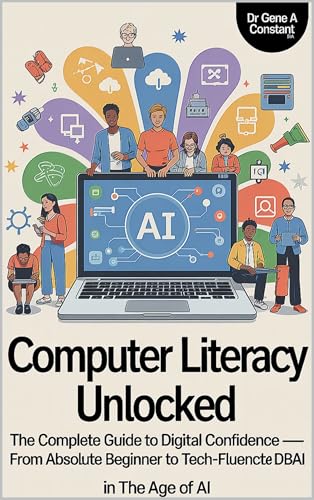
Computer Literacy Unlocked by Dr. Gene A Constant. This lesson comes from chapter one. Read the whole book free in the reader, or keep a copy.
Buy a copy — it funds a free seat
GSU is a 501(c)(3) nonprofit and book sales are its only income. A purchase is not a tax-deductible donation. This lesson is free and always will be.