Lesson 10 of 20 · Chapter 10
Online Safety and Cybersecurity Essentials
Most attacks do not break down the door. They trick you into opening it, or walk through a door you left open. This lesson gives you strong keys, a second lock, a calm response to scams and scary pop-ups, a plan for when something goes wrong, and the everyday habits that make you harder to harm and faster to recover.
Choose how you want to learn
You can change this any time. Every level does the same hands-on steps. Press Listen on any part to hear it read aloud.
- 1 · Strong keys
- 2 · The second lock
- 3 · Scams and scary pop-ups
- 4 · If you clicked
- 5 · Everyday defenses
- 6 · Do it on your device
- 7 · Your card
- 8 · Check yourself
Part 1
Passwords: long, unique, and managed
Never use the same password twice for important accounts. If one site leaks it, thieves try it everywhere.
Long beats complicated. Five or more ordinary words make a strong passphrase: “purple tractor sings at noon”.
Do not use your birthday, your street, your child’s or your dog’s name. People can find those.
If a company says your password leaked, change it right away.
A password manager remembers them all for you. Test some passwords below.
Most adults were taught short passwords with a capital, a number and a symbol, changed often. That produced Spring2024! and Winter2025!: hard to remember and easy to guess, because thieves use tools that try millions of common patterns a second.
Sort your accounts. Tier 1 is email, banking, government accounts and your phone account: each gets its own long passphrase and two-step verification. Tier 2 is work, shopping with a saved card, and cloud storage. Tier 3 is newsletters and entertainment.
A password manager stores them in a locked vault behind one strong master passphrase. It feels like all your eggs in one basket, but most people’s eggs are already in one basket: the same password everywhere. Never keep passwords in a document or spreadsheet called “passwords”, and never email them to yourself. If you must start on paper, keep the paper where you keep your birth certificate.
“Do not reuse passwords across important accounts.”
“Long beats complicated.”
Read the whole chapter free in the book reader.
Type a password (a made-up one, never your real one) and see how long it would hold out.
Part 2
Two-step verification: the second lock
Two-step verification (2FA) asks for a second proof after your password, usually a code on your phone.
Even if a thief has your password, they cannot get in without that second step.
An authenticator app is stronger than a text-message code. A text code is still far better than nothing.
Save your backup codes on paper, somewhere safe. They get you in if you lose your phone.
A code is for you to type on the website. Never read it out to anyone.
Your password is something you know. A second factor is something you have (your phone, an authenticator app, a security key) or something you are (a fingerprint or face). Two different kinds together are much harder to steal.
If you suddenly get “Is this you?” prompts you did not start, do not approve them to make them stop. Someone probably has your password and is hoping you will tap Yes.
The most common trick: someone claiming to be your bank or “support” says a code is being sent to confirm it is you, and asks you to read it back. That code is your second lock. Read it to them and you have handed them the key. No real company asks for your password or your code.
“verification codes are for your screen, not for another person.”
“backup codes are how you keep access to your own identity.”
A thief has your password. Play it out with and without the second lock.
Part 3
Scams and malware: slow down, use your own path
Scams push three buttons: hurry, fear, or a prize. When you feel one, slow down.
Never use the link in a message about your account. Open the app or type the real website yourself.
Malware is harmful software. It spies, steals passwords, fills your screen with ads, or locks your files and demands money.
A website saying “your computer has a virus, call this number” is lying. Do not call, do not click. Close the tab.
Most infections do not start with a genius hacker. They start with a believable message. Scams and malware often work as a team: the message gets the click, the click installs the malware, the malware steals the account.
Your own pathway works on almost every scam: if the alert is real, you will see it when you log in the normal way. If it is fake, you just stepped around the trap. Malware usually arrives by predictable routes: unexpected attachments, fake “secure document” logins, free or “cracked” software, fake updates, and notification permissions you did not mean to give.
Real updates come from Settings or the official app store, never from a pop-up on a web page. If a fake warning will not close, press Ctrl+W (Command+W on a Mac) to close the tab, or close the browser completely. If it keeps returning, restart the device.
“Why is a random website diagnosing my computer?”
“Do not use the link in the message. Use your own pathway.”
This pop-up just appeared. What do you do?
Part 4
If you clicked: act fast, not ashamed
Everyone makes mistakes. Acting fast matters more than feeling embarrassed.
Typed your password on a fake page? Change it now on the real site, starting with your email.
Opened a strange download? Turn off Wi-Fi, run a security scan, and tell IT if it is a work computer.
Gave someone a code? Change passwords now and call the company on the number from its real website.
On the phone and something feels off? Say: “I don’t handle account issues by phone. I’ll call the official number.” and hang up.
Criminals count on embarrassment: the longer you wait, the more they can do. The fastest fix beats the perfect one.
After a password slip, change that password and every place you reused it, email first, because email is the master key. Check two-step verification is on, look at recent activity, and look for strangers’ devices, new forwarding rules in your email, or changed recovery details.
If files are locked with a payment demand (ransomware), do not pay in a panic: paying does not guarantee you get them back and can mark you for more. Disconnect and get professional help. If money is involved, call your bank on the number printed on your card or its real website. And keep records: screenshots, case numbers, confirmation emails.
“Calm is not weakness. Calm is control.”
“People often delay action because they feel embarrassed. Criminals count on that.”
Pick what happened, then tap the steps in the right order.
Part 5
Everyday defenses: updates, locks, backups
Update your device, your browser and your apps. If you only update one thing, update your browser.
Lock your screen. Phone: after 30 seconds to a minute. Computer: after 5 to 10 minutes. Walking away? Windows key+L, or Control+Command+Q on a Mac.
Use the protection built in: Windows Security, or your Mac’s own protections. Not pop-up “security” tools.
Back up your photos and important papers to a second place, like cloud storage.
Change your home router’s default password. On public Wi-Fi, avoid banking.
Many hacks simply use weaknesses that were fixed long ago on devices that never updated. Restarting now and then helps updates finish.
A backup is a second copy kept somewhere else. It turns a stolen laptop, a coffee spill or ransomware from a disaster into an inconvenience. Start with what would hurt most to lose: family photos, IDs, tax papers, leases, medical records.
Give away less: ask “do they really need this?” before filling in every field. Do not post photos of IDs or tickets, and remember that pet names and birthplaces on social media are often security-question answers. A few times a year, check your recovery phone and email, that two-step is still on, which devices are signed in, and whether your email has forwarding rules you did not make.
“If you only update one thing, update your browser.”
“It’s about becoming harder to harm and faster to recover.”
Tap each door and window of your digital house to lock it.
Part 6
Do it now, on your own device
Pick the device you use most. Do each task, then tick it. If your screen looks a little different, use the tip at the end of each task.
Part 7
Your “My Security Plan” card
Write down your plan. Do not write any actual passwords or codes here. Nothing you type here leaves this device.
My Security Plan
Global Sovereign University · Computer Literacy Unlocked, lesson 10
If something goes wrong
- Stop. Hurry, fear or a prize is the trick.
- Never read a code or password to anyone.
- Typed a password on a fake page? Change it now, email first.
- Opened something odd? Wi-Fi off, run a scan.
- Money involved? Call the bank on the number on my card.
On the phone: “I don’t handle account issues by phone. I’ll call the official number.” Then hang up.
Part 8
Check yourself
Six real situations. Pick what you would do. You will see why after each one.
Lesson 10 complete.
You can make long, unique passphrases and let a manager remember them, add a second lock and protect your codes, step around scams and fake virus pop-ups, act quickly after a mistake, and keep your devices updated, locked and backed up. Next: Social Media Literacy: Using Platforms Without Being Used.
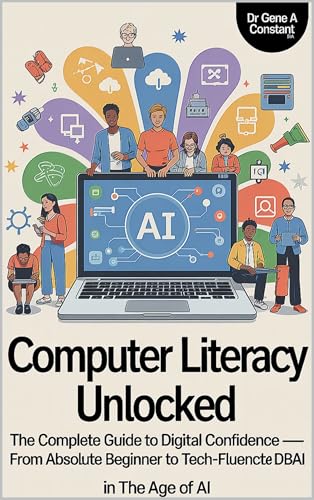
Computer Literacy Unlocked by Dr. Gene A Constant. This lesson comes from chapter ten. Read the whole book free in the reader, or keep a copy.
Buy a copy — it funds a free seat
GSU is a 501(c)(3) nonprofit and book sales are its only income. A purchase is not a tax-deductible donation. This lesson is free and always will be.