Lesson 12 of 20 · Chapter 12
Cloud Computing: Your Files Everywhere, Safely
“The cloud” is not a place in the sky. It is other companies’ computers, reached over the internet, holding copies of your files. This lesson clears up the difference between storing and syncing, shows you how to read where a file really lives, how to share without over-sharing, how to undo a mistake with version history, and how to build a backup that survives the bad day.
Choose how you want to learn
You can change this any time. Every level does the same hands-on steps. Press Listen on any part to hear it read aloud.
- 1 · Storage or sync
- 2 · Where is my file?
- 3 · Share the smallest thing
- 4 · Work together, undo mistakes
- 5 · A backup that survives
- 6 · Do it on your device
- 7 · Your card
- 8 · Check yourself
Part 1
Storage or sync: know which one is happening
Local means the file is on your device. Cloud means it is on a company’s computers, reached by internet.
Common clouds: Google Drive, Microsoft OneDrive, Apple iCloud, Dropbox.
Storage: you put a copy there. Sync: your devices and the cloud stay matched, automatically.
Sync copies everything, including mistakes. Delete a synced file and it disappears everywhere. Sync is not a backup.
Try it below.
Any file can live in one of three homes: local only, cloud only (not downloaded to this device), or synced (both, linked so changes travel). A phone photo might start local only, then sync to Google Photos or iCloud Photos and live in both.
Most cloud confusion comes from not knowing which is happening. People think a file was saved on their laptop, but it was in a synced folder and got changed everywhere. Or they think it is “in the cloud” when it never left the device.
Sync is powerful because it faithfully copies changes, including bad ones: an accidental delete or files scrambled by ransomware travel too. Sync helps you work across devices; you still need a way to recover.
“Storage is “I put it there.” Sync is “it stays matched.””
“Syncing is not automatically a backup.”
Read the whole chapter free in the book reader.
Save, edit and delete files, and watch what happens on each device.
Part 2
Read the icons: where is my file right now?
Cloud apps put a small icon beside each file to show where it lives.
A cloud outline means the file is only online. It will not open without internet.
A tick means a copy is on this device too.
Before a trip or an appointment with no Wi-Fi, set important files to always keep on this device (or “available offline”).
Your cloud account holds your life: treat it like your email, with a unique passphrase and two-step verification.
Many cloud services save space by keeping files online-only until you open them. That is handy until you are at a library with no Wi-Fi and the resume you need is only a cloud outline.
Organize the cloud the way you organized your computer: a few clear folders such as Medical, Government, Banking and Taxes, Work and Job Search, Family Photos and Receipts. The goal is finding things again, not perfection.
If someone gets into your cloud account they may see your documents, photos, scanned IDs and tax forms. Use a long, unique passphrase and two-step verification, keep recovery details current, and ignore emails saying your storage is full or your account needs attention: go to the service your own way.
“The file is not “less real” because it’s cloud-based.”
“Don’t overbuild it. The goal is retrieval, not perfection.”
No internet on the bus. Which of these files will open?
Part 3
Share the smallest thing, for the shortest time
Emailing an attachment sends a copy. Sharing from the cloud gives access to the same file.
Choose the smallest permission: Viewer reads, Commenter suggests, Editor can change it (and often share it).
Share with named people. Avoid “Anyone with the link” for anything private: links get forwarded.
Sharing a folder shares everything you add to it later, too.
When the job is done, remove their access. Clean up a folder below.
Sharing access means thinking like a door owner, not a sender. The rule: share the smallest thing, with the smallest permission, for the shortest necessary time.
A link set to “Anyone with the link” is a key that can be copied. Ask: if this link reached a stranger, what could they learn or do? If the answer is something you would regret, set it to Restricted and add people by email.
Folders are where people get surprised: share “Taxes” with a preparer, then drop next year’s papers in, and the preparer sees those too. For sensitive work, make a temporary folder like “Tax Documents To Share 2026”, and remove access when you are finished.
“share the smallest thing, with the smallest permission, for the shortest necessary time.”
“editing is authority. Give it only when you mean it.”
Your "Family Papers" folder. Who should still have access, and how much?
Part 4
Work together, and undo mistakes
Use comments to keep decisions in the file, not in ten emails.
Suggestion mode lets people propose changes that you accept or reject.
Version history keeps older copies. If a file gets spoiled, you can go back.
Autocomplete can pick the wrong person. Check the address before you share.
An email saying “a document was shared with you” that you did not expect may be a trap. Open your cloud app your own way to check.
With attachments, a wrong change becomes permanent unless you kept a copy. With version history, you can see who changed what and when, and restore an earlier version. It is a seatbelt, not permission to be careless.
Criminals use sharing too: a request to “share it with this address” from a nearly-right email, or a fake “shared with you” message leading to a fake sign-in page. Confirm requests through a channel you already know.
Before sharing: right file, nothing hidden in the folder, invitation not open link, the smallest permission. After sharing: right person, right permission, and a plan to remove access when it is over.
“Treat it like a seatbelt: it helps, but you still drive carefully.”
“Sharing is not a one-time action. It is an ongoing permission until you remove it.”
Someone pasted over your budget. Find the right version and restore it.
Part 5
A backup that survives the bad day
A backup is an extra copy kept separately, so you can get your files back.
Aim for three copies: your computer, the cloud, and an external drive you plug in, update and unplug.
An unplugged drive cannot be scrambled by ransomware or wiped by a thief in your account.
Twice a year, test a restore: pretend you lost one file and get it back.
Start today: make sure your top ten irreplaceable files are in at least two places. Test a plan below.
Plan for what actually happens: a lost or broken device, an accidental delete, a hacked account, and ransomware. The cloud trash and version history help with some of these, but not if the trash is emptied, the time limit passes, or a thief is inside your account.
Professionals call it the 3-2-1 rule: three copies, on two different kinds of storage, with one kept somewhere else. For a household that means working files, a cloud copy behind a strong password and two-step, and an external drive updated weekly or monthly and then unplugged.
Decide what deserves protection: ID and legal papers, tax and money records, medical records, work and school files, and photos. A backup full of unnamed clutter is hard to restore from, so keep clear names and folders. Testing is not pessimism; it turns a backup from a hope into a fact.
“Separately is the key word.”
“Backups are not only about saving files. They are about saving your freedom to refuse extortion.”
Build your backup plan, then throw disasters at it.
Part 6
Do it now, on your own device
Pick the device you use most. Do each task, then tick it. If your screen looks a little different, use the tip at the end of each task.
Part 7
Your “My Cloud and Backup Plan” card
Write down where your important files live. Nothing you type here leaves this device.
My Cloud and Backup Plan
Global Sovereign University · Computer Literacy Unlocked, lesson 12
Before and after I share
- Right file? Nothing extra hiding in the folder?
- Named person, not "anyone with the link"?
- Smallest permission: view, comment, or edit?
- Checked the email address autocomplete picked?
- Job done? Remove their access.
Sync is not a backup. Three copies, one unplugged. Test a restore twice a year.
Part 8
Check yourself
Six real situations. Pick what you would do. You will see why after each one.
Lesson 12 complete.
You can tell storage from sync, read where a file lives before you need it offline, share only what is needed and take access back, rescue a spoiled file with version history, and keep a three-copy backup you have actually tested. Next: Smartphones and Tablets: The Computer in Your Pocket.
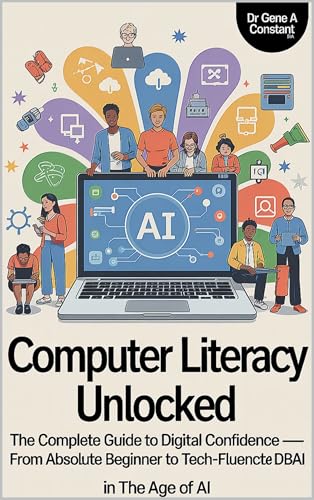
Computer Literacy Unlocked by Dr. Gene A Constant. This lesson comes from chapter twelve. Read the whole book free in the reader, or keep a copy.
Buy a copy — it funds a free seat
GSU is a 501(c)(3) nonprofit and book sales are its only income. A purchase is not a tax-deductible donation. This lesson is free and always will be.