Lesson 16 of 20 · Chapter 16
Digital Skills for the Workplace
Job postings are written in shorthand. “Computer skills” rarely means programming; it means you can find, name and send the right file, write a clean document, keep a tidy spreadsheet, make a simple slide, join a call, and stay safe. This lesson translates the job-speak, sharpens the three outputs most offices run on, and turns your gaps into a four-week plan.
Choose how you want to learn
You can change this any time. Every level does the same hands-on steps. Press Listen on any part to hear it read aloud.
- 1 · Decode the posting
- 2 · Clean documents
- 3 · Tidy spreadsheets
- 4 · Clear slides
- 5 · Your skills plan
- 6 · Do it on your device
- 7 · Your card
- 8 · Check yourself
Part 1
Decode the job posting
“Computer skills” usually means six things: using your system, handling files, email and calls, documents, spreadsheets, and staying safe online. You have practised all six in this class.
“Proficient in Microsoft Office” means Word, Excel, often PowerPoint and Outlook. “Google Workspace” means Docs, Sheets, Drive, Gmail.
Required means day one. Preferred means nice to have. If you meet about 60 percent and can learn the rest, apply.
In the interview, describe what you can do, honestly. You do not need buzzwords.
Decode a posting below.
“Detail-oriented” means accurate data and follow-through: naming files clearly and actually attaching what you said you attached. “Fast-paced multitasking” means switching between email, a portal, a spreadsheet and a chat app, calmly. “CRM” is a digital filing cabinet for customers: search, update carefully, follow the process. “ATS” is the software that stores applications, which is why you must use their portal.
The hidden skill employers want is self-sufficiency with judgment: searching for a setting instead of tapping randomly, copying an error message and searching it, restarting without drama, and asking a clear question when stuck.
At work, the own-pathway rule matters even more: a “boss” emailing for gift cards gets verified another way; a password-reset link gets ignored in favor of the normal sign-in page. That is not being difficult. It is not becoming tomorrow’s incident report.
“If you meet about 60 percent of the requirements and you can learn the rest, you are often a realistic candidate.”
“You do not need to pretend you are an expert. You need to sound capable and honest.”
Read the whole chapter free in the book reader.
Tap each phrase to translate it, then tick what you can already do.
Part 2
Clean documents and clear file names
A work document should be easy to scan: short paragraphs, headings, spacing.
A simple layout: Purpose, Key details, Next steps, Contact.
Use spacing and page-break tools. Do not press Enter over and over.
Reviewing someone’s draft? Use comments or suggestions, not a silent rewrite.
Name files so they say what it is, which version or date, and who it is for. Fix some below.
Employers do not want fancy design. They want consistency, clarity and correct formatting, so that a busy reader finds the date, the deadline and what you need from them.
Send a PDF when the layout must not move: applications, forms, signed documents, invoices. Before sending anything important, open it once the way the recipient will, as a quick professional check.
“Document1” is a liability at work. “SafetyTrainingChecklist_2026-03-01” is findable by you and everyone else, which is one of the strongest signals of competence there is.
“A clean document. A workable spreadsheet. A clear presentation.”
“Use names that answer three questions: What is it? Which version or date? Who is it for?”
Pick the best name for each file.
Part 3
Spreadsheets: consistent data, simple formulas
Most jobs need tidy tracking, not advanced maths.
Type data the same way every time: dates as 2026-03-01, and the exact same status words (“Done”, not “done”, “finished” and “OK”).
Sort to put things in order. Filter to see only what you need.
SUM, AVERAGE, COUNT and IF cover most needs.
If a total looks wrong, check the data first: a number typed as “$500” may be read as text. Fix a messy sheet below.
A spreadsheet becomes useless when the data is messy. If one person types 02/21/26, another Feb 21 and a third 2-21, the sheet treats them as different things, and they will not sort or count correctly. Year-month-day sorts correctly every time.
Readable formatting helps the next person: clear headers in bold, the top row frozen on long lists, and no random blank rows that break sorting.
Spreadsheets are literal. They will not guess what you meant, so decide the format once and stick to it.
“Spreadsheets are literal.”
“This is not perfectionism. This is how you prevent errors that waste time later.”
Your supervisor asks: how many jobs are Done? The formula says 4. Is that right?
Part 4
Slides: one idea, few words, consistent
Slides help a group understand. You are supporting a message, not performing.
One idea per slide.
A few short words on the slide; say the details out loud.
Keep one simple look: the same fonts and sizes, readable colors, no wild animations.
Save updates with a clear date, not “FinalFINAL2”. Fix a slide below.
Five ideas on one slide force people to read while you talk, and they end up doing neither well. Split them.
Text is a skeleton, not the whole body. If you need the full wording, put it in speaker notes or a separate document.
Consistency beats creativity. Busy, animated slides look amateur and can glitch while screen sharing. A simple theme, aligned objects and strong contrast look professional every time.
“One idea per slide”
“Consistency beats creativity”
This slide is due on Friday. Fix it.
Part 5
Measure your skills, then make a plan
Do not judge your skills by how anxious you feel. Test them.
Sort gaps into three levels. Level 1 (fix first): files, passwords and login, email, web forms, joining a call. Level 2: documents and PDFs, spreadsheets, sharing links. Level 3: tools for a specific job, learned when needed.
Practise 30 minutes, three times a week, for four weeks. That is six hours.
Then say what you can do, plainly. Check yourself below.
Anxiety often means you had bad experiences, not that you cannot learn; comfort sometimes means you have only done the easy parts. Evidence beats feelings: the five-part reality check in Part 6 takes about 20 minutes and shows exactly where you stand.
A four-week plan: week 1 files and documents, week 2 spreadsheets, week 3 email and calls, week 4 a mini workday: download a file, rename it, edit it, export a PDF, upload it, share a link, and write a professional email about it.
AI can tutor you through gaps (“explain how to attach a PDF in plain English”), but you still practise on your own device. An honest interview answer: “I’m comfortable with documents, PDFs, attachments and basic spreadsheets including sorting and SUM. I name and file things so I can always find them, I’m careful about phishing, and I learn new tools quickly.”
“That is not assessment. That is emotion.”
“Digital confidence is not pretending you know everything.”
Be honest: which of these can you do today?
Part 6
Do it now, on your own device
Pick the device you use most. Do each task, then tick it. If your screen looks a little different, use the tip at the end of each task.
Part 7
Your “My Workplace Skills” card
Write down what you can do and what you are building. Nothing you type here leaves this device.
My Workplace Skills
Global Sovereign University · Computer Literacy Unlocked, lesson 16
A job posting says…
- "Proficient in Office": Word, Excel, PowerPoint, Outlook.
- "Detail-oriented": accurate data, clear file names.
- "Multitask": switch tools calmly, fix glitches.
- "CRM": search and update records carefully.
- Meet about 60 percent and can learn the rest? Apply.
File names: What_Version-or-Date_ForWhom · Dates: 2026-03-01
Part 8
Check yourself
Six real situations. Pick what you would do. You will see why after each one.
Lesson 16 complete.
You can translate a job posting into plain tasks and judge whether to apply, produce clean documents with findable names, keep spreadsheet data consistent so formulas tell the truth, make clear slides, and turn your gaps into a realistic four-week plan. Next: Online Learning: Education on Your Own Terms.
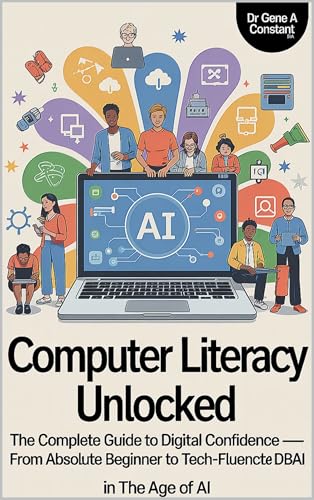
Computer Literacy Unlocked by Dr. Gene A Constant. This lesson comes from chapter sixteen. Read the whole book free in the reader, or keep a copy.
Buy a copy — it funds a free seat
GSU is a 501(c)(3) nonprofit and book sales are its only income. A purchase is not a tax-deductible donation. This lesson is free and always will be.