Lesson 4 of 20 · Chapter 4
Files, Folders and Digital Organization
Most computer panic is really “where did my file go?” This lesson gives you the map: drives, folders, files and their endings. Then you practise moving, copying and deleting without fear, and you build a simple filing system you can keep for life.
Choose how you want to learn
You can change this any time. Every level does the same hands-on steps. Press Listen on any part to hear it read aloud.
- 1 · Drives, folders, files
- 2 · The file ending
- 3 · Move, copy, delete
- 4 · A system you can keep
- 5 · Downloads, cloud, backup
- 6 · Do it on your device
- 7 · Your card
- 8 · Check yourself
Part 1
The map: drives, folders and files
A drive is where your computer keeps things for good, like a filing cabinet. On Windows the main one is usually called C:. On a Mac it is often called Macintosh HD.
A folder is a drawer or a paper folder. It holds files, and it can hold other folders.
A file is one item: a letter, a photo, a form.
Your file does not live “in Word”. It lives in a folder, on a drive. Word only opens it. Find the resume below.
Your computer comes with folders already made: Documents for papers, Downloads for things from the internet, Pictures, and Desktop. The desktop is not magic. It is just a folder you stare at every day, so hundreds of files there is a messy folder you cannot escape.
When you save, you always save to a particular drive. Save to the computer’s own drive and the file stays on that computer. Save to a USB stick and it travels with you. Save to a cloud drive like OneDrive, iCloud Drive or Google Drive and it can appear on your other devices. That is why a resume saved on your home laptop does not appear on the library computer.
People say “my resume is in Word” as if Word were a closet. So they open Word and hope. Once you know the file sits in a folder, you know to go to that folder, or search for its name.
“Downloads is where things land. It is not where things belong.”
“your file lives on a drive inside a folder. The app is just the tool you use to open it and work on it.”
Read the whole chapter free in the book reader.
Open the folders to find the resume the employer asked for, as a PDF.
Part 2
The file ending tells you what it really is
The letters after the last dot in a file name are its extension, or file ending. They tell you what kind of file it is.
.docx is a Word document. .pdf looks the same on every device. .jpg and .png are pictures. .xlsx is a spreadsheet. .exe is a program that runs.
Always read the last ending. “Invoice.pdf.exe” is a program, not a PDF.
Typing a new ending does not change the file. To make a PDF, use Save As or Export.
The book compares an extension to the label on a folder in a doctor’s office. The label does not hold the medical information, but it tells staff what kind of form it is and how to handle it. The extension tells your computer which program should open the file.
This is why employers ask for your resume as a PDF. A Word file can look slightly different on another computer. A PDF is built to look the same almost everywhere.
Computers often hide file endings to look simpler. That makes one trick easier: a scammer names a program “Invoice.pdf.exe”, and with endings hidden you only see “Invoice.pdf”. Turning file endings on (a task below) lets you see the truth. And renaming “Resume.docx” to “Resume.pdf” only changes the label. The file inside is still a Word file.
“Exporting is a real transformation, not just a costume change.”
“clarity is safer than confusion.”
Read the ending, then say what kind of file it is.
Part 3
Move, copy and delete without fear
Move puts a file somewhere else. There is still only one.
Copy makes a second file. The first one stays where it was.
The keys: Cut is Ctrl+X, Copy is Ctrl+C, Paste is Ctrl+V. On a Mac, use Command instead of Ctrl.
Delete sends a file to the Recycle Bin (Windows) or Trash (Mac). You can get it back from there.
Undo (Ctrl+Z, or Command+Z on a Mac) takes back your last action. Practise all of this below.
Most beginners are not afraid of files. They are afraid of losing something important. So they never organize, and the mess grows. The cure is working in small steps and knowing how to undo.
To move with intention: select the file, cut it, go to the folder you want, paste it. Dragging works too, but it is easy to drop a file into the wrong folder. A copy is separate from the original: changing one does not change the other. That is how people end up with “Resume Final” and “Resume Really Final”.
Two things can hurt you. Emptying the Recycle Bin or Trash makes recovery much harder, so empty it on purpose, not by habit. And deleting from a cloud-synced folder can delete the file on your other devices too.
If a file seems gone: press Undo right away, check the folder you meant, search for part of its name, sort by Date Modified, and look in Desktop and Downloads.
“Files almost never vanish. They get misplaced.”
“Cut means “I want to move this.” Copy means “I want to duplicate this.” Paste means “put it here.””
Click a file to select it, then try the buttons.
Part 4
A filing system you can keep
Make one home-base folder inside Documents, called something like “Life Admin”.
Inside it, make a few plain folders: Finances, Medical, Work and Job Search, Home, Family and Legal. Two levels deep is enough.
Make one folder called Inbox or To File. New things go there first. Once a week, file them.
Name files so you know what it is and when. Write dates as year-month-day: 2026-02-10. Then files line up in order.
Keep it boring. Plain names like Finances and Medical are easy to find. Inside Finances you might have Banking, Taxes and Budget. Inside Work and Job Search, Resumes and Applications. The moment you click through five folders to save a letter, the system is working against you.
Your life produces paper constantly: downloads, attachments, scans, photos of receipts. Without a place for new things, they pile up on the Desktop. The Inbox folder is allowed to be messy on purpose. Five minutes of filing a week keeps it under control.
A good name answers: what is it, who is it for, and when. For example “Taxes - W2 - 2026-01.pdf”. Pick one version rule and stick to it: dates, or v01, v02. For job hunting, keep an editable .docx and an upload-ready .pdf side by side in Resumes.
“Keep it boring. Boring is good. Boring is findable.”
“What matters most is consistency.”
Switch between the two ways of writing dates and watch the order.
Part 5
Downloads, the cloud and a backup
Downloads is like the mail you bring in. It is fine for it to land there, but not to stay for months. Once a week, keep what matters and delete the junk.
If you use OneDrive, iCloud Drive or Google Drive, pick one main home for your important papers. Do not keep them in three places.
Keep a backup: a second copy of your important files somewhere else, like a trusted cloud service or an external drive.
Test yourself: can you find your resume, a tax paper and your insurance card in 30 seconds each?
Cloud folders are helpful, but syncing spreads changes: delete a synced file on one device and it may disappear everywhere. That is not a reason to fear the cloud. It is a reason to be deliberate.
Choose one of two ways. Keep your home-base folder in a cloud-synced place so it backs up and appears on your other devices, or keep it on your computer and back it up yourself. Either works. Many people end up with Documents, OneDrive Documents and iCloud Documents all at once, and never know which is real.
Organization helps you find files. A backup helps you survive losing them: a stolen laptop, a failed drive, or ransomware. Keep small habits: file the Inbox every week, clean Downloads every month.
“Uncertainty is the enemy.”
“Organization helps you find files. Backups help you survive loss.”
Part 6
Do it now, on your own device
Pick the device you use most. Do each task, then tick it. If your screen looks a little different, use the tip at the end of each task.
Part 7
Your “My Filing Map” card
Write down how your own files are organized, so you and anyone helping you can find things fast. Nothing you type here leaves this device.
My Filing Map
Global Sovereign University · Computer Literacy Unlocked, lesson 4
My file habits
- Every week: empty the Inbox into the right folders (10 minutes).
- Every month: clean out Downloads.
- Dates as year-month-day so files line up: 2026-02-10.
- To make a PDF, use Save As or Export. Never just rename.
- Lost something? Undo, check the folder, search, then look in the Recycle Bin or Trash.
Read the last ending. “Invoice.pdf.exe” is a program, not a document.
Part 8
Check yourself
Six real situations. Pick what you would do. You will see why after each one.
Lesson 4 complete.
You know where files really live, you can read a file ending and spot a disguised program, you can move, copy, delete and recover without fear, and you have a simple filing system with an Inbox, good names and a backup. Next: Typing, Keyboard Shortcuts and Input Mastery.
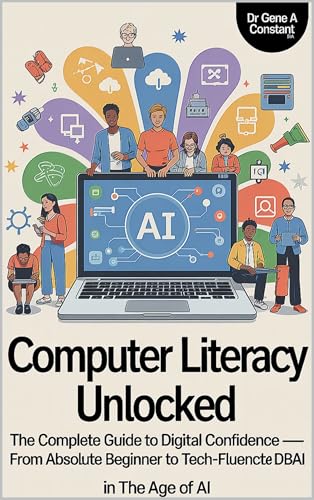
Computer Literacy Unlocked by Dr. Gene A Constant. This lesson comes from chapter four. Read the whole book free in the reader, or keep a copy.
Buy a copy — it funds a free seat
GSU is a 501(c)(3) nonprofit and book sales are its only income. A purchase is not a tax-deductible donation. This lesson is free and always will be.