Lesson 9 of 20 · Chapter 9
Web Browsing: Finding What You Need (and Avoiding What You Don’t)
The internet is not a library. It is a marketplace: some pages help you, some sell to you, some want your data, and some want to scare you into clicking. This lesson teaches you to search on purpose, read a web address, check a claim in a second tab, keep what you find, and browse without giving away more than you mean to.
Choose how you want to learn
You can change this any time. Every level does the same hands-on steps. Press Listen on any part to hear it read aloud.
- 1 · Search on purpose
- 2 · Read the address
- 3 · Check it in a second tab
- 4 · Tabs and bookmarks
- 5 · Downloads, cookies, privacy
- 6 · Do it on your device
- 7 · Your card
- 8 · Check yourself
Part 1
Search on purpose, not by accident
Type the important words, not a whole story: “printer offline Windows 11”.
Copy the exact error message if you have one.
Put quotation marks around words that must appear together: “Form SSA-44”.
Put a minus sign before a word you do not want: jaguar speed -car.
Add site: to search only official places: renew license site:.gov. Build a search below.
Most beginners search the way they would ask a friend. That works sometimes, but it brings back mixed-up answers. Search like you are instructing a very literal assistant: clear nouns, the exact error, and a context word such as your state, your device or the agency.
Quotes make the engine keep words together and in order, useful for an exact error message or a form name. The minus sign subtracts: if a Windows fix keeps bringing back Mac pages, add -mac.
The strongest beginner move is site:. Searching site:irs.gov, site:ssa.gov, site:cdc.gov or site:.gov keeps you inside official places, which cuts the chance of landing on a look-alike page built to catch your details. It is not about worshipping authority. It is about not getting caught.
“the internet is not a library. It is a marketplace.”
“Search is a skill, not a talent”
Read the whole chapter free in the book reader.
Turn on each tool and watch the search, and the results, get sharper.
Part 2
Results are ranked, not blessed: read the address
The top results are not always the best. Some are ads, marked “Sponsored”.
For your bank, benefits or anything with money or your identity, skip the ads.
Look at the web address, not the page title. The real name sits just before the first /.
Read the address from that first slash backwards: ssa.gov is Social Security; ssa.gov.benefits-help.com belongs to benefits-help.com.
A results page shows what the search engine thinks is most relevant, popular or profitable. Ads are paid placement. They are not all evil, but scam pages are often bought above the real one.
The domain is the main part of the address, like irs.gov or yourbank.com. Scammers hide the real name inside a longer address, or add a dash or a small misspelling. Train your eyes on the domain, just as you learned to read the last ending of a file name.
When you open a page, scan before you trust: which site am I on, is it trying to inform, sell, scare or collect, and how old is it? A computer fix from 2014 or a benefits rule from two years ago can be wrong today. Urgency is always a signal.
“results are ranked, not blessed”
“Urgency is not always a scam, but it is always a signal.”
Which of these addresses really belong to Social Security? Tap each one.
Part 3
Check it in a second tab
Do not ask “does this look professional?” Scams look professional.
Ask four questions: Who is behind this? What do they want from me? How do they know? Can I confirm it somewhere else?
Open a second tab and search for the website itself, not just the claim.
Check anything important with two independent sources: for health, a hospital or health agency; for benefits, the .gov site.
Professional fact-checkers do not stay on one page and let it persuade them. They leave it: in a new tab they look up who runs the site. That is called lateral reading, and anyone can do it.
Badges, logos, “as seen on” banners, glowing testimonials and long comment sections are decoration, not evidence. Evidence is a source you can trace, a clear explanation, and honesty about limits.
Slow down when a page says everyone else is lying, pushes you to act now with money or personal details, wants you to download something to “view” it, blocks the page until you give your phone number, or is a login page you are not sure how you reached. AI can now write very convincing pages, which makes confirming even more important.
“Can I confirm this somewhere else?”
“None of those are evidence by themselves.”
Read the claim, then use the other tabs to check it.
Part 4
Tabs for now, bookmarks for later
A tab is another page open at the same time. Use tabs for what you are doing right now.
A bookmark saves a page so you can come back without searching. Use bookmarks for later.
Bookmark your bank, benefits and bill pages only after you have checked they are real. Then always go through the bookmark.
Put bookmarks in a few folders, and give them clear names: “SSA Login”, not “Welcome”.
At the end of a session, do a tab reset. Try it below.
Tabs are a safety tool as well as a convenience: the claim in one tab, the check in another. But forty open tabs become a junk drawer, kept open because closing them feels risky. Anything you need later belongs in a bookmark, not an open tab.
Bookmarking the real site once means you stop hunting through search results full of ads and look-alikes. Use folders like the ones you made for files and email: Banking and Bills, Medical, Work and Job Search, Government Services, Tech Help.
Do not bookmark sensitive pages on a shared or library computer: bookmarks show where you bank and which clinic you use. And be choosy with extensions (add-ons to your browser). Only install one when you can say what problem it solves and who made it, and remove the ones you do not use.
“Use tabs for “right now.” Use bookmarks for “later.””
“bookmark the official site after you verify it, not before.”
Decide what to do with each open tab.
Part 5
Downloads, cookies and private browsing
A download puts a real file on your device. PDFs from a real .gov site are usually fine. “Free” software from an ad, or a pop-up “security update”, is not.
After downloading something important, move it from Downloads into your folders.
A cookie is a small note a website saves in your browser. When a cookie banner appears, look for Reject non-essential or Manage, not just the big Accept button.
Private or Incognito mode stops your device keeping a history. The website, your internet company and a work network can still see you.
If a site asks to send you notifications, the usual answer is Block.
If a website wants you to download something just to “view” a receipt, “confirm” a package or “fix” your computer, that is a classic danger pattern. Be especially careful with files that run programs, like .exe on Windows.
Some cookies are useful (keeping you logged in, remembering your cart). Some count visitors. Some follow you across the web to build an advertising profile. Banners often make Accept all big and bright and hide the other choices; that design hopes you will click fast.
Incognito is useful on a library computer or for a second account, because it clears history and cookies when you close the window. It is local privacy, not invisibility. And if a sketchy site tricked you into allowing notifications, the pop-ups can look like a virus. The fix is simple: remove that site’s permission in your browser settings.
“think of incognito as “local privacy,” not “total invisibility.””
“The fix is part of digital adulthood: review and revoke permissions.”
Deal with the cookie banner, then test what private browsing really hides.
Part 6
Do it now, on your own device
Pick the device you use most. Do each task, then tick it. If your screen looks a little different, use the tip at the end of each task.
Part 7
Your “My Safe Browsing Map” card
Write down your trusted places and habits. Nothing you type here leaves this device.
My Safe Browsing Map
Global Sovereign University · Computer Literacy Unlocked, lesson 9
Before I click, download or type my details
- Is the real name just before the first slash?
- Is it an ad? Skip ads for money and identity.
- Who is behind it, what do they want, can I confirm it elsewhere?
- Do I know what this download is, and did I ask for it?
- Cookie banner: Reject non-essential. Notifications: Block.
Search tools: "exact words" · -unwanted · site:.gov
Part 8
Check yourself
Six real situations. Pick what you would do. You will see why after each one.
Lesson 9 complete.
You can search with purpose, read a web address to find who really owns it, check a claim in a second tab, keep the good sites in bookmark folders, and handle downloads, cookies, notifications and private browsing on purpose. Next: Online Safety and Cybersecurity Essentials.
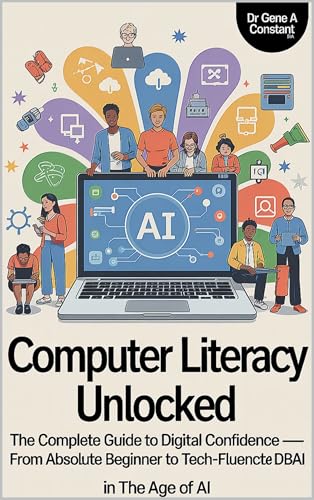
Computer Literacy Unlocked by Dr. Gene A Constant. This lesson comes from chapter nine. Read the whole book free in the reader, or keep a copy.
Buy a copy — it funds a free seat
GSU is a 501(c)(3) nonprofit and book sales are its only income. A purchase is not a tax-deductible donation. This lesson is free and always will be.